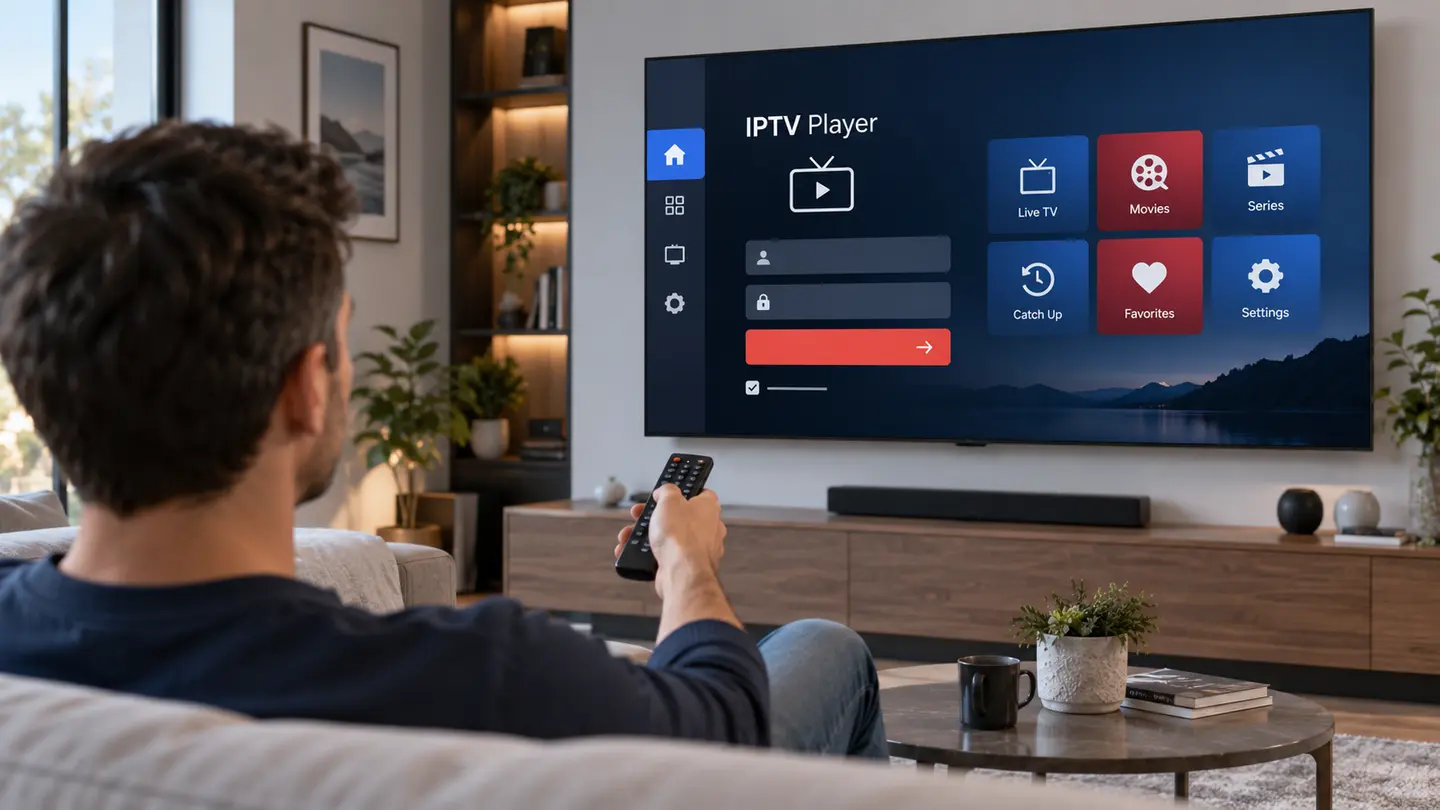
Smart TV setup is convenient because no extra box is required, but the app store, codec support and remote behaviour vary by brand and model. The right approach is to identify the television platform first, choose a maintained player and test the account before purchasing a long app licence.
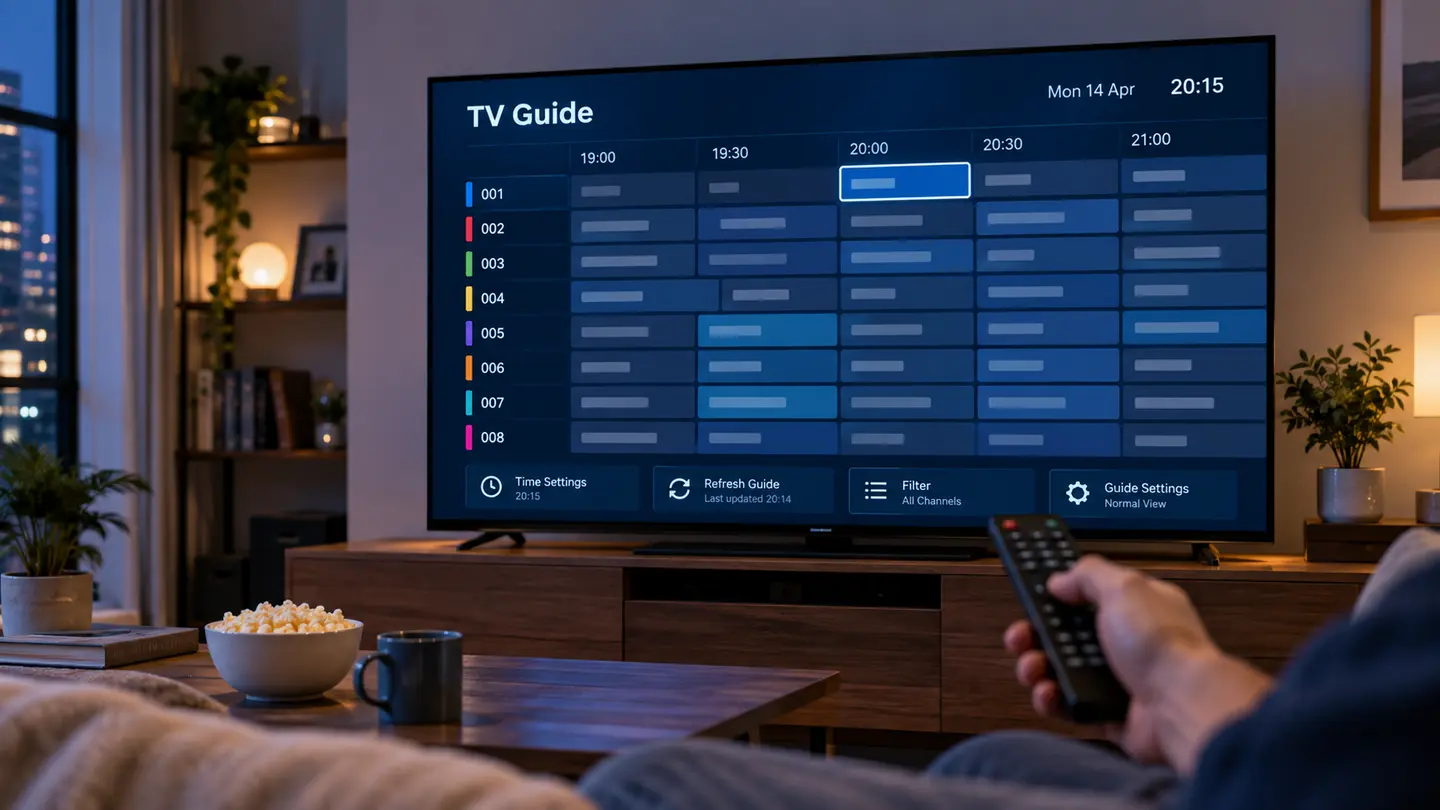
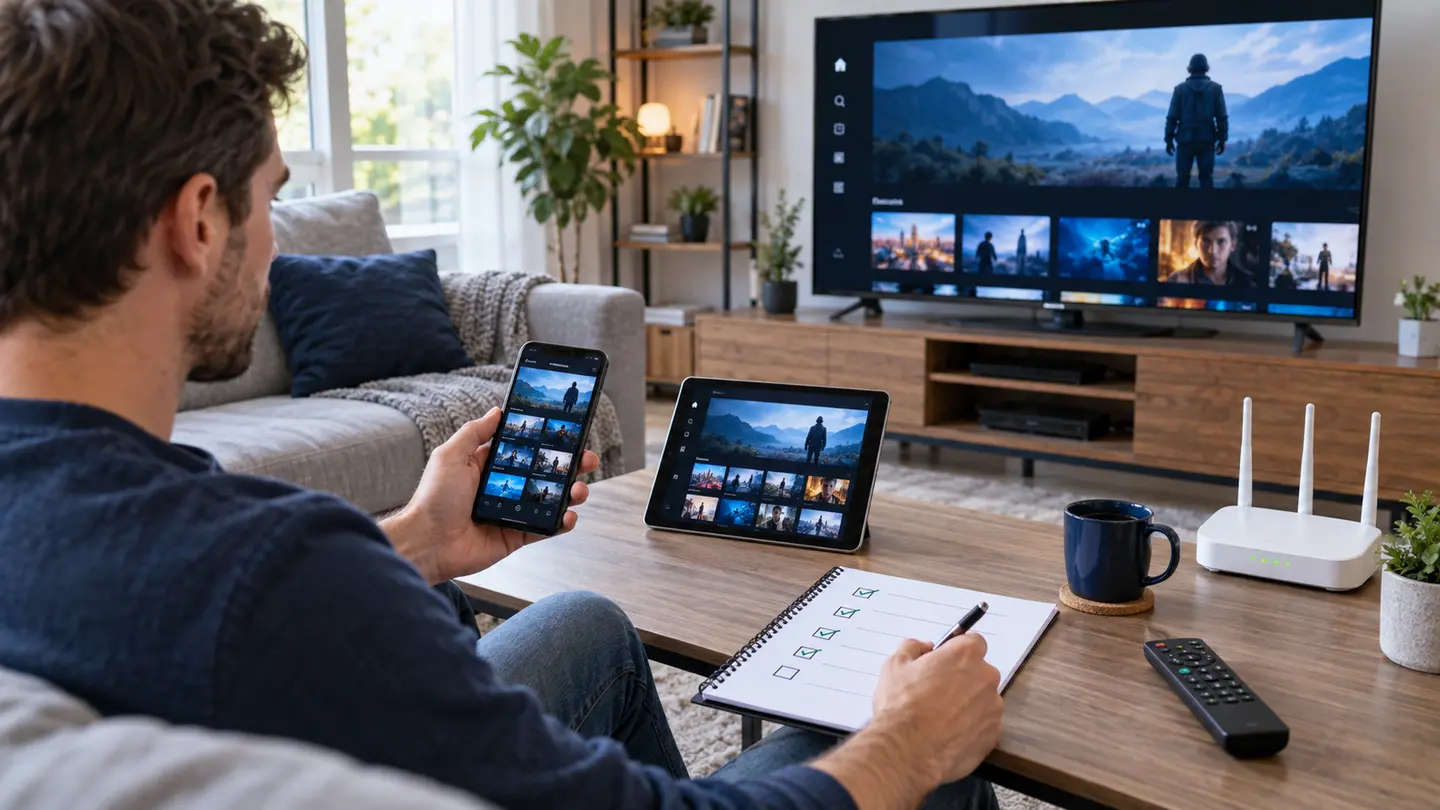
Find the television operating system, update it, install a verified IPTV player from the official store, enter the supported login method and test live TV, movies, series, EPG, subtitles and remote navigation. If the television is old or slow, a current external streaming device can be easier to maintain.
Identify the Smart TV Operating System
Samsung televisions commonly use Tizen, LG uses webOS and many Sony, TCL and other models use Google TV or Android TV. The brand name alone is not enough because model years can change the platform and supported store. Open About or Support in settings and write down the full model and software version.
Use that information when searching for an app. A guide that says “works on Smart TV” without naming the operating system is too broad to be dependable.
Choose a Maintained Player From the Official Store
Search the built-in store and compare exact publisher names, update dates, login formats and licence terms. Some television players require activation on a separate website; confirm the domain shown by the developer before entering a device identifier or playlist.
Player availability can differ by country. Do not change the television region casually because it may affect other apps and account terms. Ask for another compatible player or use an external device when a trusted option is not available.
Load the Account Without Exposing Credentials
Enter the username, password and server address directly when possible. If the app uses a web portal, complete the step on a private device and clear the browser form afterward. Never include a playlist URL in a screenshot sent to a public forum because it may reveal the full login.
Give the playlist a simple name, let the first refresh complete and do not repeatedly force-close the app while it downloads categories or guide data.
Improve Network Reliability at the Television
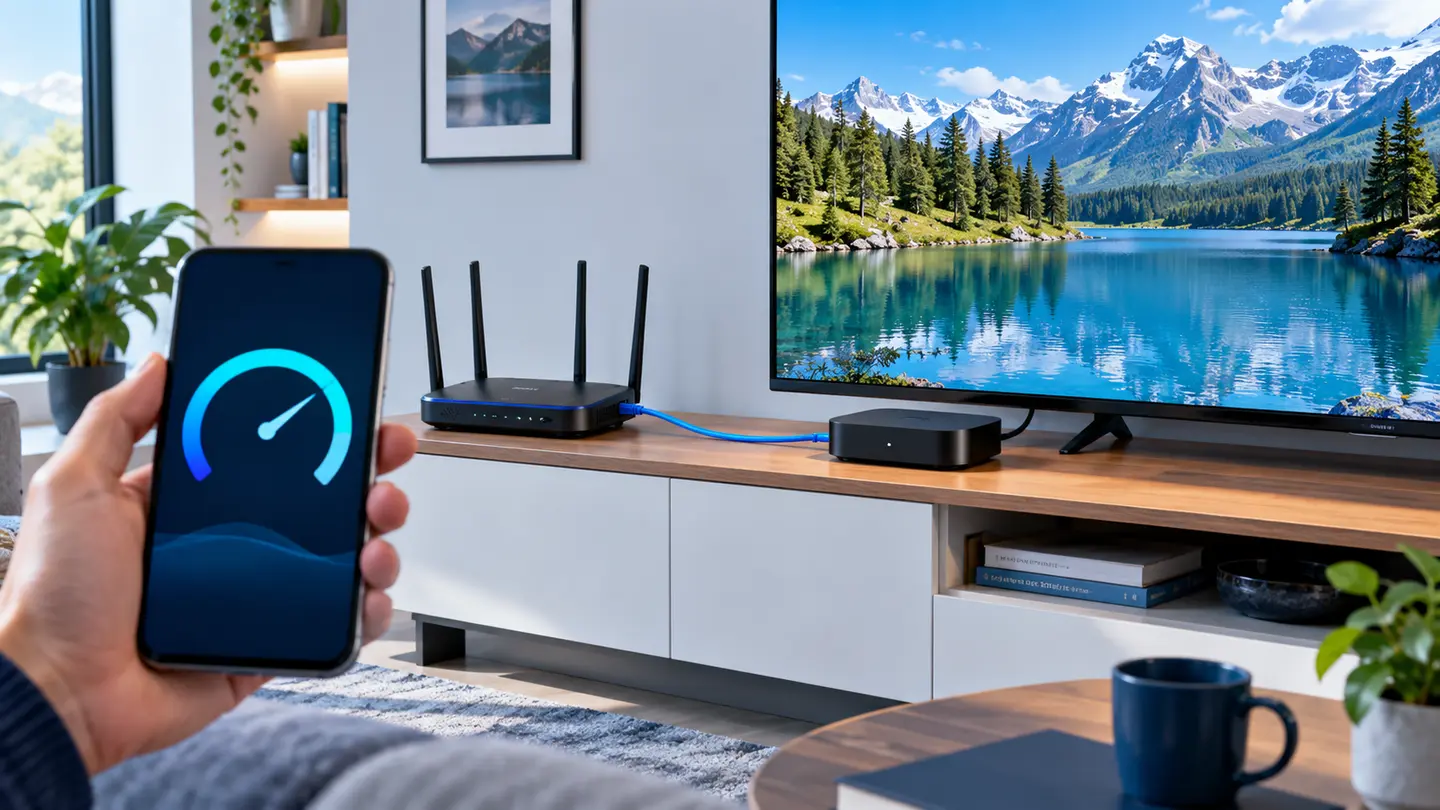
A television mounted far from the router can show a strong-looking signal but still suffer interference and retransmissions. Compare 5 GHz with 2.4 GHz, move the router away from cabinets and test Ethernet if the television port is practical. The goal is stable available throughput, not the highest speed-test peak.
Pause downloads and cloud backups during the trial. If problems disappear, household traffic or router queueing is involved. If the same source fails on every device while unrelated services work, report the exact category and time to support.
Know When an External Streaming Device Is Better
An external box or stick can extend the life of an older television by providing a maintained operating system, more app choice and stronger decoding. It also lets you replace the streaming hardware without replacing the display.
Choose it when the native store has removed the player, guide scrolling is consistently slow or common formats show a black screen. Keep the television input and remote setup simple so everyone in the household can use it.
Frequently Asked Questions
Final Check Before You Continue
Use the exact device, player and network that matter to you, protect account credentials and confirm the current price, connection count, content rights and policy terms before payment. Availability and app support can change, so current testing is more useful than an old screenshot or catalogue total.