Buffering is a symptom, not a diagnosis. It can originate with one source, the provider route, your internet connection, Wi-Fi, the player cache or the device decoder. The fastest solution is to narrow the scope before changing settings.
First ask whether one source, one category or everything is affected. Compare another device and Ethernet, restart the player and router, check household traffic, update the app and try the default decoder. Report the exact item, time, device and player if the problem remains.
Start by Defining the Scope
Open several live categories and one on-demand title. If one channel buffers but others play normally, the local network is less likely to be the only cause. If every video service on the device struggles, investigate the device or connection before the IPTV account.
Also compare time. A problem that appears only during evening demand may involve Wi-Fi congestion, internet-provider load or upstream capacity. Write down the exact time instead of relying on “it always buffers.”
Restart in the Right Order
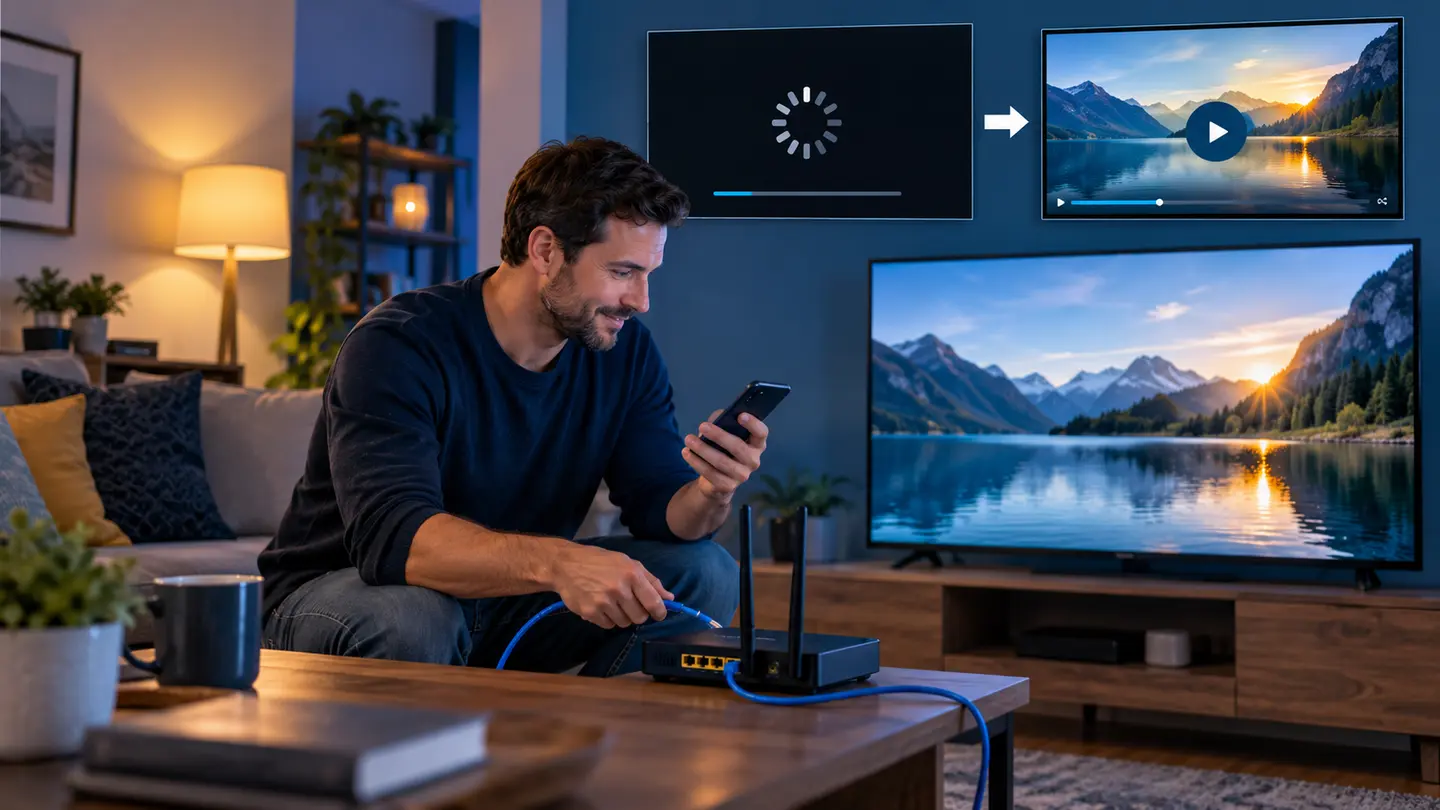
Close the player completely, power off the streaming device, restart the router and wait for the internet connection to settle. Then start the device and reopen the player. This clears short-lived sessions and stale local state without deleting the account.
Do not repeatedly reboot if the fault returns every day. A temporary reset is useful evidence, but recurring buffering needs the next checks.
Compare Ethernet and Wi-Fi
Temporarily connect Ethernet or move the device closer to the router. If the problem disappears, focus on Wi-Fi placement, band selection, mesh backhaul and interference. If there is no change, continue to player and source comparisons.
On Wi-Fi, test both 5 GHz and 2.4 GHz where available. Five gigahertz is often faster nearby; 2.4 GHz may hold a link farther away. Avoid placing the router inside a cabinet or behind the television.
Check Household Traffic and Router Health
Cloud backups, game downloads and several 4K streams can consume available capacity or increase queueing delay. Pause them briefly during the test. Check whether the router feels unusually hot and whether firmware is current.
Cheap repeaters can halve available wireless capacity or add instability. A wired access point or properly placed mesh node is usually easier to troubleshoot than several chained extenders.
Repair the Player Without Wiping It
Refresh the playlist and EPG, then clear only the cache if the app provides that option. Update the player and device. Try the default decoder first; if there is a black screen, frozen frame or audio-only playback, compare hardware and software decoding one at a time.
Clearing all app data should be a late step because it removes the login, favourites and settings. Record the working credentials securely before doing it.
| Pattern | Likely area | Useful comparison |
|---|---|---|
| One source buffers | Source or route | Another source in same category |
| Every source on one device | Player, decoder or local link | Same account on another device |
| Every service on Wi-Fi | Home network | Temporary Ethernet |
| Guide slow, playback normal | EPG data or app storage | Refresh guide and reduce EPG days |
Send Support Evidence That Can Be Used
Include the device model, operating system, player name and version, connection type, affected category and exact time. State whether another device or Ethernet changed the result. Do not send only a video saying “buffering,” because it does not identify the failing layer.
Never post the full playlist URL, username or password publicly. Support can usually identify the account through the registered contact details without exposing credentials.
Frequently Asked Questions
Final Check Before You Continue
Use the exact device, player and network that matter to you, protect account credentials and confirm the current price, connection count, content rights and policy terms before payment. Availability and app support can change, so current testing is more useful than an old screenshot or catalogue total.