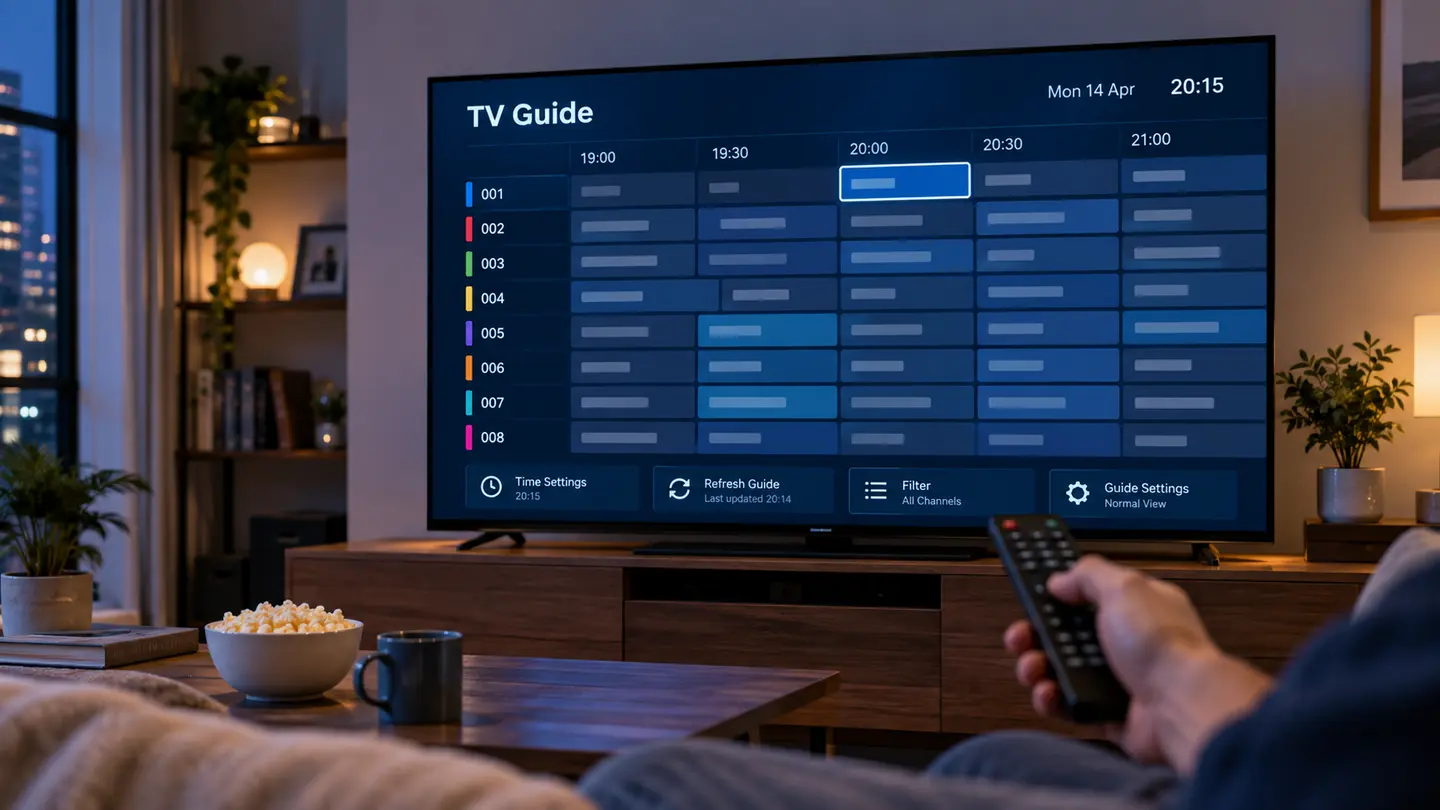
Live playback and EPG data travel through related but separate processes. A channel can play perfectly while its programme row is empty, offset by an hour or mapped to the wrong listing. Work from clock settings to refresh, mapping and source coverage.
Set the device timezone and clock correctly, confirm the player EPG source, refresh guide data, check any time offset and compare a few channels. If only some rows are empty, the issue is likely coverage or mapping rather than the whole account.
Understand Why EPG Can Fail While Video Works
The player matches a channel identifier with a programme-data identifier. If names or IDs do not align, the video entry remains usable but the row shows no information. Regional variants and duplicate channel names make mapping more difficult.
The guide can also be delivered as a separate XMLTV file. Expiry, an incorrect address or a failed download then affects EPG without changing live access.
Fix the Device Time and Timezone First
Enable automatic date and time, then select the correct timezone. Restart the player after the system clock is corrected. A manual EPG offset should compensate only for a consistent data mismatch, not for a device configured to the wrong region.
Test channels from different regions because one group may intentionally use another local time. The goal is to align the guide with the displayed source, not force every country into one clock.
Refresh Playlist and EPG in the Right Order
Use the player refresh command and let category loading finish. Then clear or refresh EPG data separately if the app offers that option. Avoid pressing refresh repeatedly; parallel downloads can slow the device and leave incomplete data.
If the player shows a last-update time, record it. A stale timestamp supports a download or cache diagnosis, while a current timestamp with a few empty rows points toward mapping.
Check Mapping and Coverage Patterns
Compare five or ten important channels. If every row is empty, inspect the guide source and account configuration. If only certain channels are missing, list their exact category and displayed name so support can check the mapping.
Temporary “no information” periods can occur when schedules have not yet been supplied. EPG is useful metadata, not a guarantee that every source will always have a complete future schedule.
| EPG symptom | Likely cause | First action |
|---|---|---|
| All rows empty | Guide not loaded or wrong source | Refresh and verify EPG settings |
| Guide one hour early/late | Timezone or offset | Correct device clock, then offset |
| Only some channels empty | Coverage or mapping | Report exact channel names |
| Guide makes app slow | Too much cached data | Reduce guide days and clear EPG cache |
Reduce Guide Load on Older Devices
Limit the number of future and past EPG days if the player allows it. Hide unused categories and keep enough storage free. Large guide files can make a low-memory television app slow even when video playback is fine.
If the same account loads EPG quickly on another device, compare player versions and storage rather than changing the internet plan.
Give Support a Useful EPG Report
Include the device timezone, player name, last guide update, category and exact displayed channel name. State whether the issue affects all rows or only a few, and whether live playback still works.
A screenshot is useful when it hides account details. Do not expose the server URL, username or playlist address in the image.
Frequently Asked Questions
Final Check Before You Continue
Use the exact device, player and network that matter to you, protect account credentials and confirm the current price, connection count, content rights and policy terms before payment. Availability and app support can change, so current testing is more useful than an old screenshot or catalogue total.