Fire TV devices remain popular for television streaming, but installation now depends more than ever on the exact hardware and operating system. Use the official app store when a compatible player is available, protect account credentials and test decoding and network performance before changing advanced settings.
Identify the Fire TV model and operating system, install a trusted compatible player from an authorised source, enter the supplied login carefully, refresh categories and test live TV, EPG and on-demand playback. Newer devices may use a different operating system, so older Android-style instructions may not apply.
Check the Fire TV Model Before Following a Guide
Fire TV hardware and software are not identical across generations. Some models use the familiar Fire OS environment, while newer products can use a different platform with tighter app-installation rules. Open the device settings, record the model and software version, then confirm that the chosen player is available for that combination.
This check prevents the most common setup mistake: following instructions written for a different device. If an app is missing from the official store, ask the app publisher or account support for a current, authorised option rather than downloading a look-alike package from an unknown page.
Prepare the Television and Network
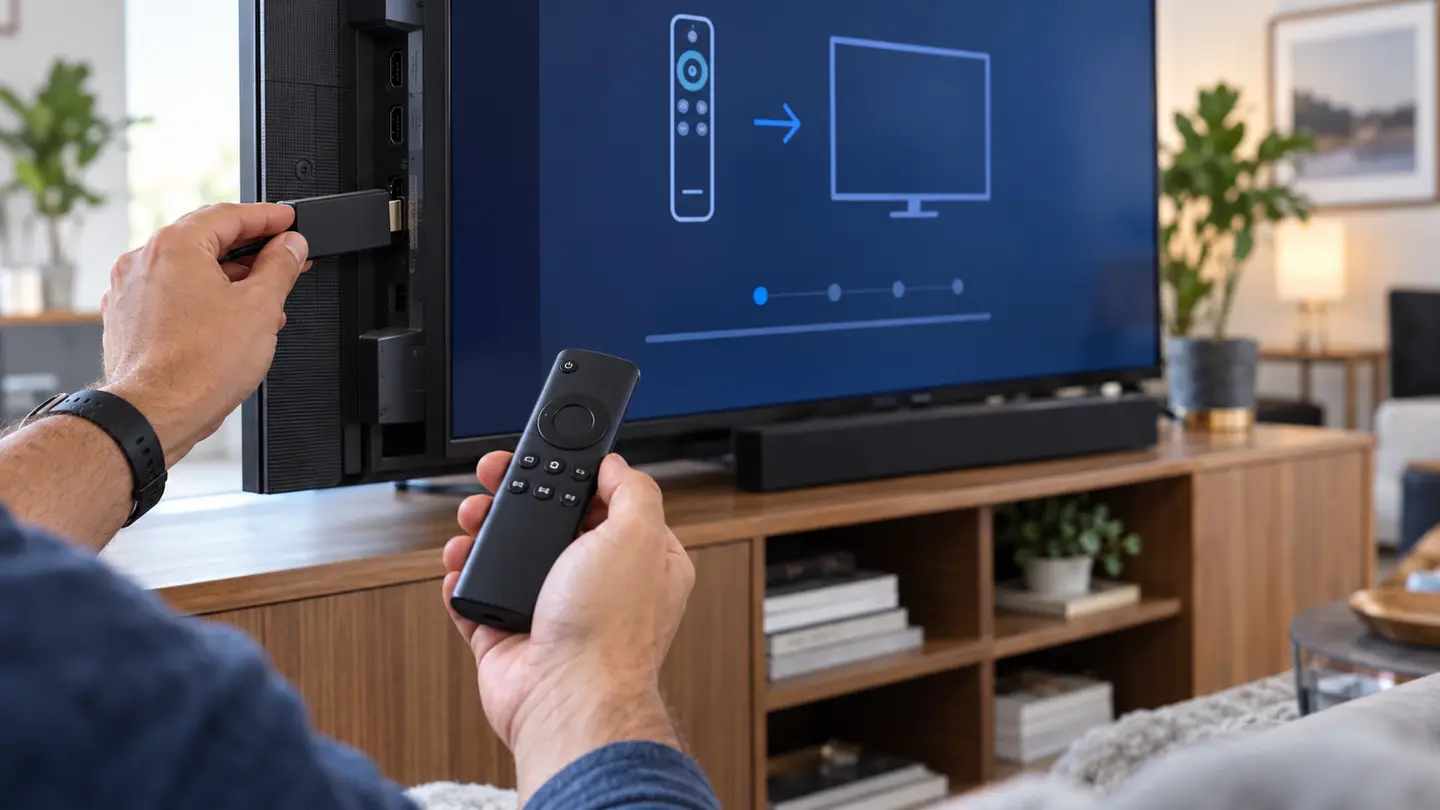
Connect the streaming device directly to a suitable HDMI port and use its power adapter rather than relying on a weak television USB port. Complete system updates, set the correct timezone and confirm that ordinary streaming apps work before adding the IPTV player.
For Wi-Fi, compare signal quality at the television with the reading beside the router. A fast broadband plan does not fix a weak local link. Ethernet through a compatible adapter is often the easiest way to separate Wi-Fi congestion from a service or player problem.
- Stable power supply
- Current system update
- Correct date and timezone
- Enough free storage
- Strong Wi-Fi or Ethernet link
Install a Compatible IPTV Player
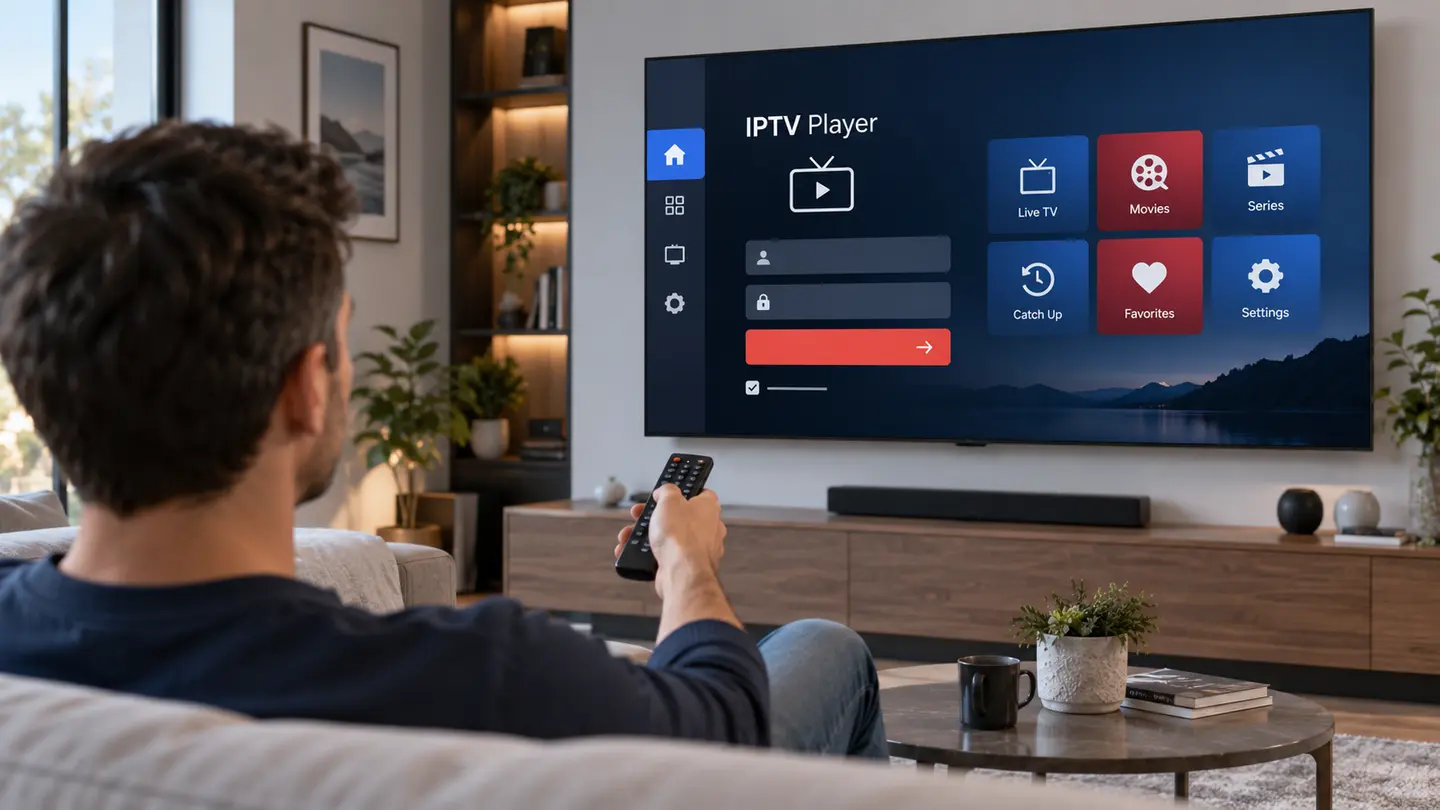
Search the official device store for the exact app name and verify the publisher. Install the app, open it once and review its privacy and licence information. The player may be free, trial-based or separately paid; that fee is not automatically part of a Best IPTV subscription.
If the player requests a web activation step, type the address yourself and check HTTPS before entering a device code. Never paste a playlist into an unrelated “converter” merely to make installation easier.
Add the Account and Verify Each Section
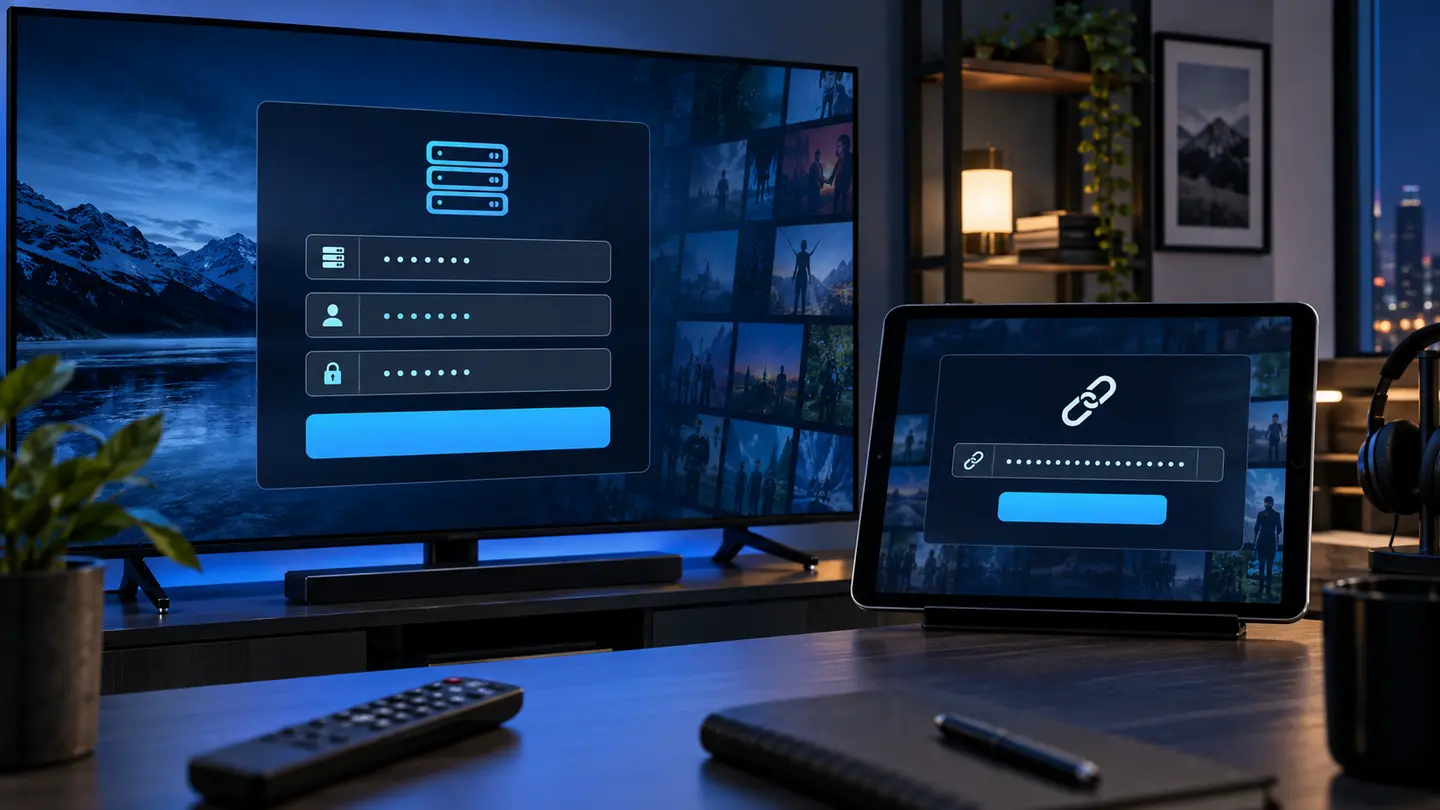
Choose the login type supplied with the account: username/server, M3U or another supported method. Enter details exactly, including the server prefix and any capital letters. Give the playlist a neutral household label that does not expose the password.
After loading, open live categories, movies, series and EPG in turn. Confirm search and favourites, then restart the app to make sure the login and settings persist. Test a live source for several minutes before deciding the setup is complete.
Fix Common Fire TV Playback Problems
If every stream buffers, restart the player, Fire TV device and router, then compare Ethernet or a stronger Wi-Fi band. If only one source fails, the network is less likely to be the cause. Clear the player cache before clearing all data, because clearing data usually removes saved credentials.
For a black screen with sound, try the player decoder setting and check whether the television supports the format. For an incorrect guide time, correct the system timezone and the player EPG offset, then refresh guide data.
| Symptom | First check | Next step |
|---|---|---|
| All streams buffer | Wi-Fi or Ethernet stability | Restart router and compare another device |
| One source fails | Alternative source in same category | Report the exact item and time |
| Black screen, audio works | Decoder mode | Update player and device |
| EPG time is wrong | System timezone | Refresh EPG or adjust offset |
Keep the Setup Secure and Maintainable
Use a device profile protected by a PIN when children share the television. Hide adult categories unless specifically requested, and sign out before selling or giving away the device. Treat the account URL like a password because it may contain credentials in plain text.
Record only the safe configuration details: player name, version, decoder choice and network connection. When asking support for help, share the device model and error message but do not post the full playlist address publicly.
Frequently Asked Questions
Final Check Before You Continue
Use the exact device, player and network that matter to you, protect account credentials and confirm the current price, connection count, content rights and policy terms before payment. Availability and app support can change, so current testing is more useful than an old screenshot or catalogue total.