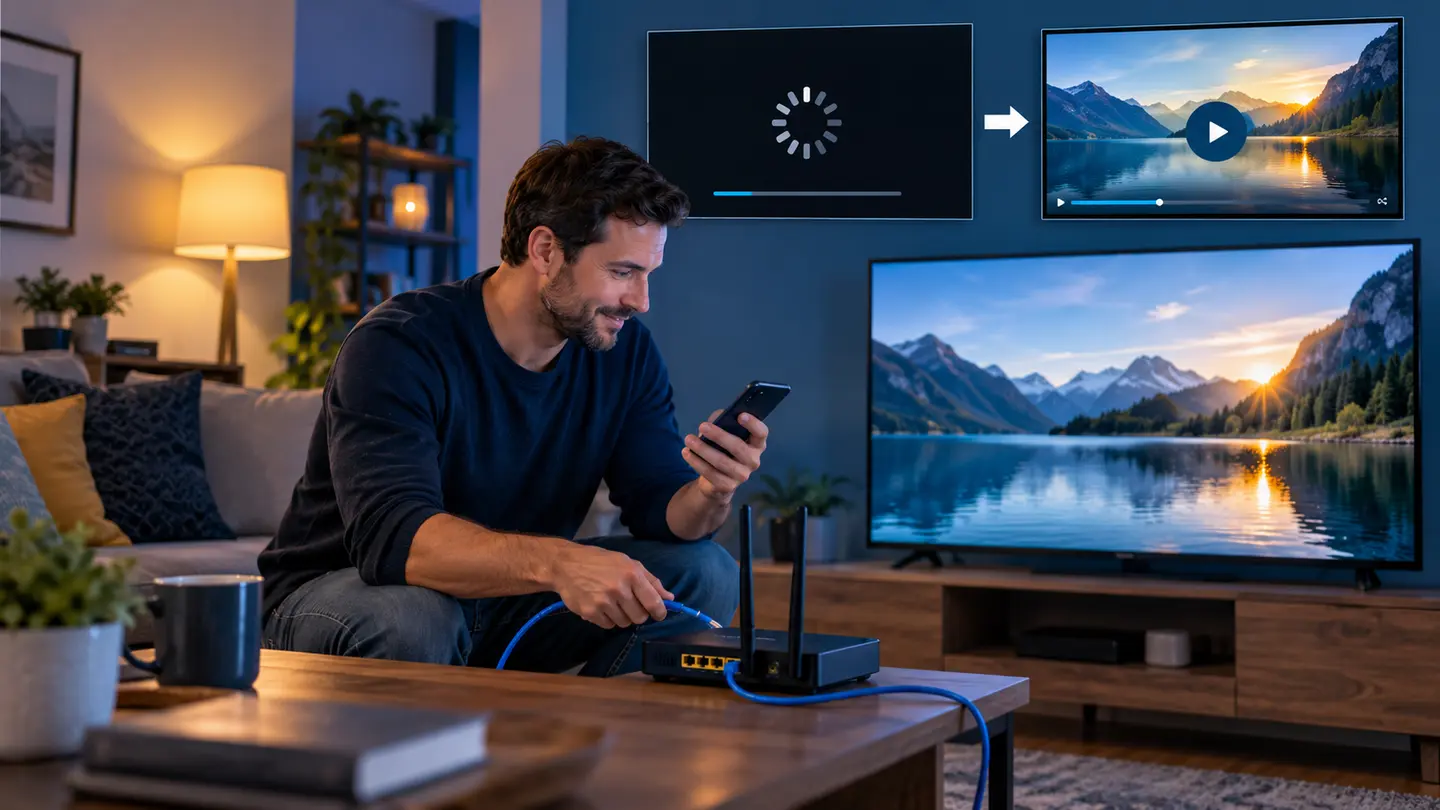
IPTV needs stable available bandwidth, but a single speed-test number cannot prove that every stream will play well. Resolution, codec, frame rate, source bitrate, Wi-Fi interference, router load and the device decoder all matter. Build in headroom and test where the television actually sits.
As a practical starting point, keep roughly 10 Mbps available for HD, 20–25 Mbps for Full HD and 40–50 Mbps for 4K per active stream. These are planning targets, not guarantees; efficient codecs may need less and high-bitrate sources may need more.
Use Practical Bandwidth Targets With Headroom
Video bitrate changes from scene to scene. Fast sport, film grain and detailed motion can create peaks above the average. A connection running at its absolute limit may buffer even when the advertised plan speed appears sufficient. Keeping spare capacity lets the player absorb those peaks and other household activity.
For multiple simultaneous connections, add the expected streams together, then include extra room for phones, backups, calls and software updates. Four viewers do not share one stream; they create four separate demands on the connection.
| Typical quality | Planning target per stream | Why it varies |
|---|---|---|
| SD | 5–8 Mbps available | Codec and source quality |
| HD | Around 10 Mbps available | Frame rate and bitrate peaks |
| Full HD | 20–25 Mbps available | Sports and high-motion scenes |
| 4K | 40–50 Mbps or more available | Codec, HDR and source bitrate |
Test at the Device, Not Beside the Router
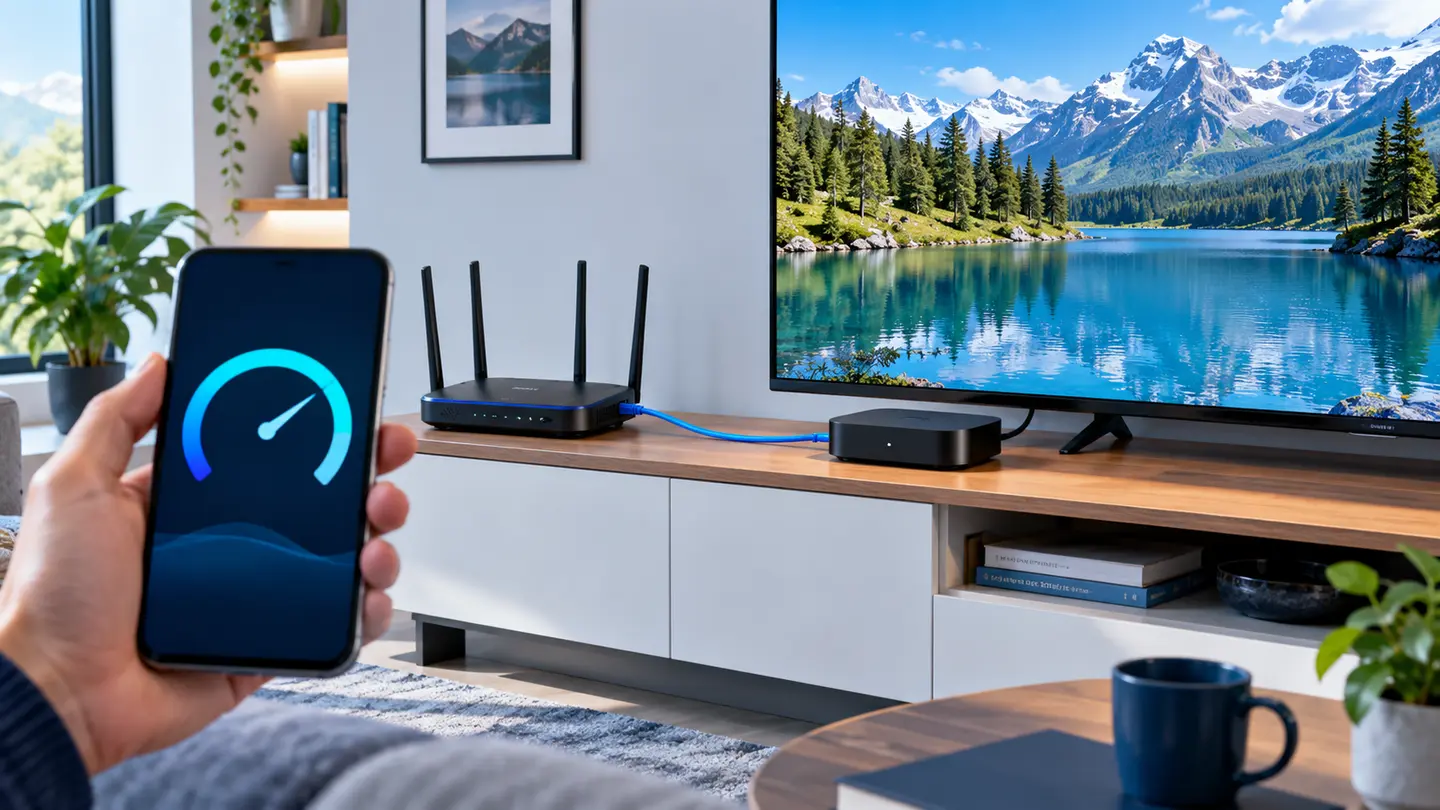
A phone beside the router can show excellent speed while a television behind two walls suffers interference. Run tests near the TV at the same time of day you normally watch. Repeat them because one high result can hide short drops.
If the television cannot run a reliable test, compare another device in the same location or temporarily connect Ethernet. The comparison is more useful than chasing a precise number from one app.
Choose Between Ethernet, 5 GHz and 2.4 GHz
Ethernet usually provides the most predictable link when a cable is practical. Five-gigahertz Wi-Fi can deliver higher speed with less interference at short range, while 2.4 GHz often reaches farther but shares crowded spectrum. Wi-Fi 6 can improve efficiency with several active devices, but it cannot overcome weak placement or thick walls.
Use the band that produces the most stable result at the television. A steady 80 Mbps is better for streaming than a connection that jumps between 300 Mbps and almost zero.
Look Beyond Download Speed
Packet loss, jitter and latency spikes can empty the player buffer even when average throughput is high. Router overheating, busy repeaters and overloaded mesh backhaul are common local causes. Restarting equipment may help briefly, but recurring problems need placement, firmware or hardware attention.
The route between the internet provider and a particular source can also change by time of day. Compare several unrelated services before blaming the IPTV account or buying a faster package.
Set Up the Player and Device Sensibly
Leave decoder and buffer settings at their defaults first. An extremely large buffer can delay channel changes without fixing packet loss, while an aggressive small buffer can reveal every short network dip. Change one setting at a time and test the same source.
Keep enough device storage free, close heavy background apps and install system updates. A device that cannot decode the video smoothly may look like a bandwidth problem even when the network is healthy.
Build a Repeatable Network Test
Test one required live source for ten to fifteen minutes, then repeat during the busiest household period. Note the connection type, device, player and time. Try Ethernet or another device before changing the subscription. This creates useful evidence for support.
If only one source fails while others at similar quality work, report the exact source rather than continuing to tune the router. If every streaming service struggles, investigate the home network or internet connection first.
Frequently Asked Questions
Final Check Before You Continue
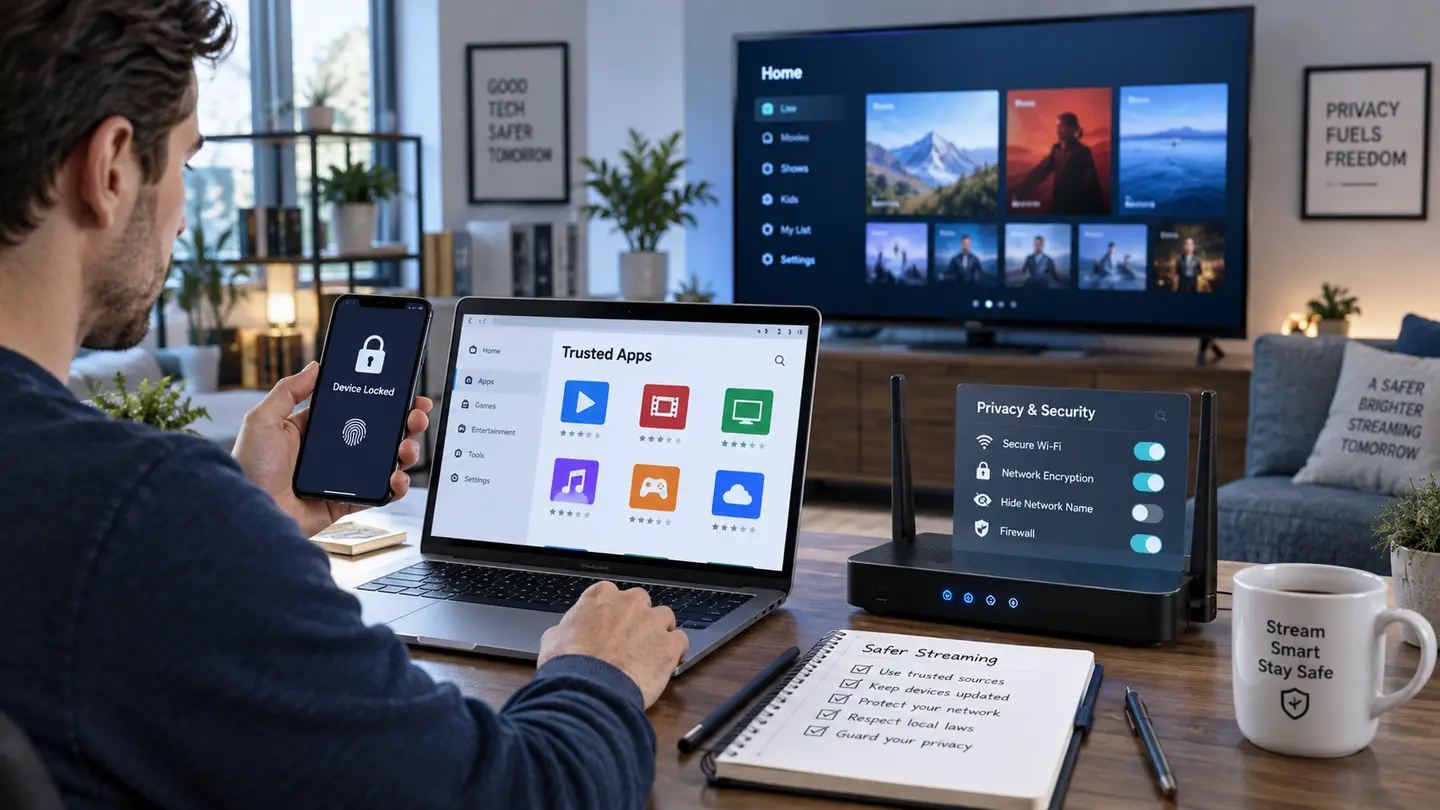
Use the exact device, player and network that matter to you, protect account credentials and confirm the current price, connection count, content rights and policy terms before payment. Availability and app support can change, so current testing is more useful than an old screenshot or catalogue total.